
Quantity discounts
In the Advanced B2B solution and vertical solutions, Open2b allows you to manage multiple price tiers based on ordered quantities, enabling very granular differentiation, including by customer group and by individual product SKUs.
Open2b's price management system lets you differentiate by quantity and price tiers and set tiers with quantities and prices at the individual SKU and price list level.
The ability to associate different price lists and price/quantity tiers to different customer groups, with granularity down to the individual customer, will allow you to show reserved prices only to customers you authorize and grant access to.
For example, you can assign resellers a price list with quantity-based prices excluding VAT, and instead give retail customers a traditional price list with VAT-included prices that do not vary by quantity.
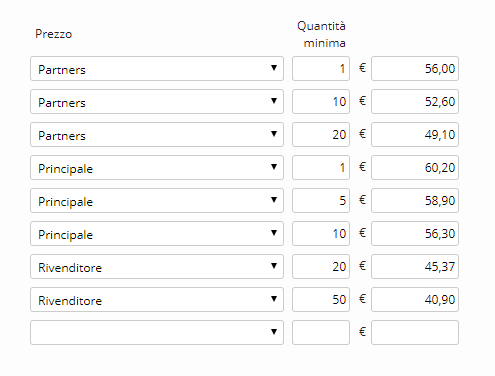
Create quantity discounts
You can set quantity discounts by creating price tiers directly in the product tab or in the individual product SKU tab.
Create price tiers in the product tab
To create price tiers on the product for the desired price lists:
- Go to the Catalog section.
- Click the product for which you want to set price tiers.
- In the Prices panel
- Select the price list to associate with the price tier.
- Enter the quantity from which the price tier starts.
- Enter the unit price for the tier you are creating for that specific selected price list.
- Repeat to create all the desired price tiers for each price list.
- Click Save. If the product has multiple SKUs, the prices shown on this screen refer to the primary SKU, i.e., the first SKU created for the product.
- You can always add new tiers or edit existing tiers, whether for price lists, quantities, or prices.
Create price tiers for a single SKU
To create price tiers for a single SKU and the desired price lists:
- Go to the Catalog section.
- Click the product for which you want to set price tiers per SKU.
- Select the SKUs tab.
- Click the SKU for which you want to set price tiers.
- In the Prices panel
- Select the price list to associate with the price tier.
- Enter the quantity from which the price tier starts.
- Enter the unit price for the tier you are creating for that specific selected price list.
- Repeat to create all the desired price tiers for each price list.
- Click Save.
- You can always add new tiers or edit existing tiers, whether for price lists, quantities, or prices.